HYPERLINK Function in Excel (Complete Guide)
HYPERLINK Function is one of the most useful Excel features when you want to create clickable links using formulas instead of inserting links manually.
This function helps you connect websites, files, folders, email addresses, and even different sheets inside a workbook in a clean and dynamic way.
If you work with dashboards, reports, or large Excel files, learning this function will save time and make your spreadsheets more interactive.

Table of Contents
What is the HYPERLINK Function?
The HYPERLINK Function is a built-in Excel function that creates clickable links directly from a formula.
Instead of inserting links manually, you define the link destination and display text inside a cell.
Because it works with formulas, this function becomes especially powerful when combined with other Excel features like IF, CONCAT, or cell references.
Why Use a Formula Instead of Insert Link?
Manual links are fine for one-time use.
However, when links depend on changing data, formulas are far more reliable.
Using the Excel HYPERLINK Function allows you to:
Create dynamic links that update automatically
Build navigation buttons for dashboards
Keep spreadsheets organized and professional
Reduce broken or outdated links
This is why HYPERLINK() is commonly used in business reports and Excel dashboards.
HYPERLINK() Syntax Explained
=HYPERLINK(link_location, [friendly_name])
Arguments Explained
link_location
The destination of the link. This can be a URL, file path, email address, or cell reference.friendly_name
Optional text shown in the cell instead of the actual link.
If the second argument is omitted, Excel displays the full link.

Click Here to Watch Video Tutorial
In Example 1, we have two examples,
First example contain both link location and friendly name, so it is showing the friendly name not the link location.
But in second example, we have given only link location, so it is showing the link location.
Explanation with Examples
Click Here to Watch Video Tutorial
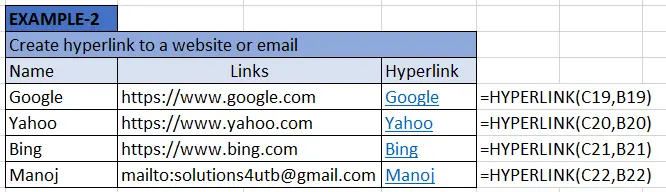
Hyperlink() fuction can be used to link various websites and it can also be used to create email link.
In the above example you can see first three are used to link the websites and the last one example is used to create the email link.
Note: Name column is B, Link column is C and Hyperlink column is D.
Click Here to Watch Video Tutorial
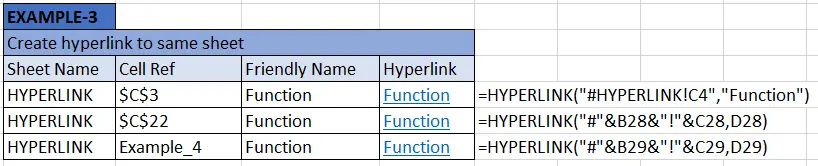
We can create a hyperlink to link a cell or cell range on the same sheet. Here we have three different examples to explain this. Here we have used three columns Sheet Name, Cell Ref and Friendly Name. These three columns are used to create the hyperlink in last column.
First Example
=HYPERLINK(“#HYPERLINK!C4″,”Function”)
In this example we have hardcoded the formula by using the cell reference text directly in the formula instead of using cell reference where sheet name and cell reference is given.
Second Example
=HYPERLINK(“#”&B28&”!”&C28,D28)
In this example we used the formula to link a single cell with the cell reference where target sheet and cell reference is stored. In this example if change the stores sheet name and cell reference is changed then target of the hyperlink will change.
Third Example
=HYPERLINK(“#”&B29&”!”&C29,D29)
In this example we have used Named Range instead of cell reference. Named Range is Example_4 and its reference is B31.

Click Here to Watch Video Tutorial
With the help of hyperlink formula we can also link a different sheet within the same workbook. Here we have used the sheet name as Transpose and cell as A1. So if we click the hyperlink it will go to the cell A1 of Transpose sheet.

Click Here to Watch Video Tutorial
In this example we will see how to link a sheet of a different workbook with the help of Hyperlink() function. In the above example table 3 main column. File Name, Sheet Name and Friendly Name. First two example has no sheet name and the last example has sheet name ISNA. when there is no sheet name, it will go to first sheet of the file.
If the file is in different folder you have to use the file address. If there are different situation according to which we have change the file address.

Click Here to Watch Video Tutorial
In this example we will learn how to link different workbook in completely different folder.
Here in the location you have to use complete address of the file. In this example we used the file Contact Manager.

Click Here to Watch Video Tutorial
In this example you will learn to link a particular sheet of different workbook of a different folder.
In this case you have use the complete file address and sheet name. In the above example you can see in location we have used complete file address, file name(Contact Manager), Sheet name( Address Book, Database), and cell reference as A1 and Friendly name as My File.
Pro Tips
Use short and clear friendly names to keep sheets clean
Combine with IF to show links conditionally
Avoid hard-coding file paths when possible
Use it sparingly to avoid clutter
Test links before sharing the file
These small habits make your Excel files more reliable and professional.
Common Errors & Fixes
#VALUE! Error
Cause: Incorrect syntax
Fix: Check quotation marks and commas
Link Not Opening
Cause: File moved or renamed
Fix: Update file path
Friendly Name Not Displaying
Cause: Formula reference issue
Fix: Confirm cell contains text
#VALUE! Error in HYPERLINK Formula
Occurs due to incorrect syntax or missing quotes.
HYPERLINK Not Working
Happens when file paths or URLs change.
Broken Excel Hyperlink
Fix by checking the link_location argument.
Frequently Asked Questions (FAQ)
1. What is the HYPERLINK Function used for?
It creates clickable links using formulas inside Excel cells.
2. Does HYPERLINK work with dynamic data?
Absolutely. It works perfectly with cell references.
3. What is the difference between Insert Link and HYPERLINK?
Insert Link is static; the HYPERLINK Function is dynamic.
4. Can HYPERLINK link to another sheet?
Yes, the Excel HYPERLINK Function can link to internal sheets.
5. Is this function available in all Excel versions?
Yes, it works in all modern versions of Excel.
6. Can it link to another workbook?
Yes, as long as the file path is correct.
7. Does it work on Mac?
Yes, but file paths must follow macOS format
8. Can I combine it with other formulas?
Yes, it works well with IF, CONCAT, and VLOOKUP.
9. Is it better than Insert Link?
For dynamic data, yes.
Conclusion
The HYPERLINK Function is a must-know Excel function for anyone working with data, dashboards, or reports.
By using HYPERLINK() formulas correctly, you can create clean, interactive, and professional Excel files.
The HYPERLINK function is a simple yet powerful way to make Excel sheets interactive. Once you start using formulas for links, managing large files becomes much easier. If you work with reports or dashboards, this is a function worth mastering.